
Overview
Strips are your quick window to important information and functions for the management of the Flight Data Record (FDR). All routine functions of an aircraft’s flight plan are accessible via clickspots on the strip. This page will introduce you to the structure of the strip, the information contained, and the functions accessible for the normal operation of the FDR.
Setup
On Position selection, strip setup will be configured as defined in the profile dataset.
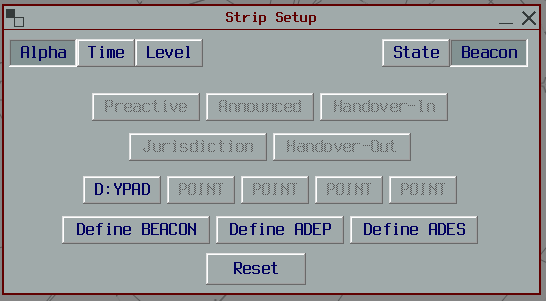
Strip Setup can be altered by accessing the Strip Setup Window.
Strip mode and strip sort modes are explained here.
Windows
Strip Windows contain strips for tracks that are of state Preactive or greater. That is to say, all aircraft that enter one of the controlled sectors selected, or are otherwise under jurisdiction will trigger the display of a strip. Strip colour corresponds to the corresponding Track state.
Strip Mode selection decides which type of strip windows are available for display.
Beacon
Beacon Strip Windows are organised by defined beacons, waypoints or airports. Flights of at least Preactive state with the defined beacon point in their route will appear in the window, or if none of the points are contained, appear in a generic OTHER Strip Window.
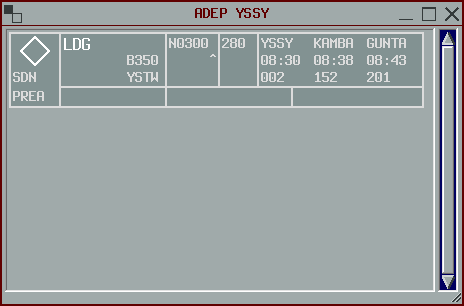
The OTHER Strip Window will automatically display when strips are present, and hide when empty.
State
State Strip Windows are organised by current Track State (Preactive, Announced, etc.).
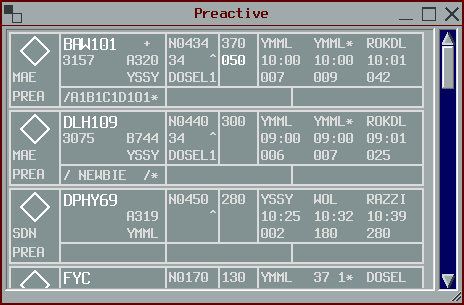
Strips will move between windows when changing state. The OTHER strip window is not used in this mode.
Selection
Strip and Track selection are synchronised. Selecting a strip will select the corresponding track and vice versa. The selected strip will be scrolled into view (disables scrolling).
LEFT CLICK the aircraft direction indicator (Triangle, Diamond) field to toggle.
Extension
Individual strips may be extended to display more information.

MIDDLE CLICK the Callsign field to toggle extension of a strip.
Cocking
Individual strips may be cocked to the right within their Strip Window.
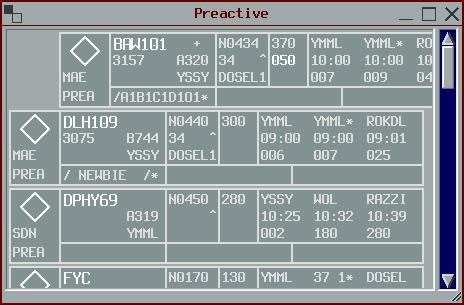
RIGHT CLICK the aircraft direction indicator field to toggle.
Hiding
Individual strips may be hidden from display.
MIDDLE CLICK the aircraft direction indicator field to hide.
Hidden strips may be restored in the settings menu.
Fields
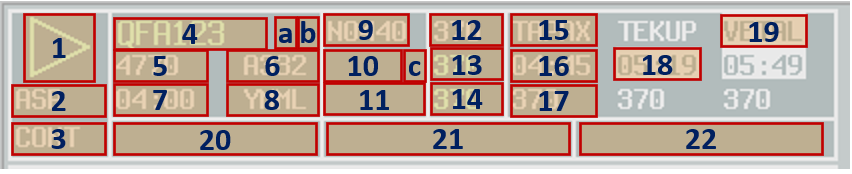
| Field | Content | Action |
|---|---|---|
| 1 | Aircraft Direction Indicator. Either a Diamond or Triangle symbol. Triangle points in the direction of flight. Filled when strip is selected | LEFT CLICK to select / deselect track. MIDDLE CLICK to hide strip. RIGHT CLICK to cock strip. |
| 2 | Controlling Sector Abbreviation | LEFT CLICK to open handoff menu |
| 3 | FDR State Abbreviation | If PREA, LEFT CLICK to activate FDR. |
| 4 | Callsign | LEFT CLICK to open Callsign menu. MIDDLE CLICK to extend strip. |
| 5 | Assigned SSR Code | LEFT CLICK to open SSR menu. |
| a | CPDLC Status Indicator. See aircraft labels for values | LEFT CLICK to open CPDLC Editor Window. |
| b | VFR Indicator | |
| 6 | Aircraft Type | |
| 7 | Actual Departure Time | LEFT CLICK to open ATD menu. |
| 8 | Destination | |
| 9 | Planned Cruise TAS | |
| 10 | Assigned Departure or Arrival Runway | LEFT CLICK to open RWY menu. |
| 11 | Assigned SID or STAR | LEFT CLICK to open SID/STAR menu. RIGHT CLICK to display full name. |
| c | PDC Status Indicator. ^ if PDC eligible, → when sent, ✓ when acknowledged | LEFT CLICK to open CPDLC Editor Window (PDC). MIDDLE CLICK to toggle acknowledged. |
| 12 | Requested Flight Level | |
| 13 | Cleared Flight level | LEFT CLICK to open CFL Window. RIGHT CLICK to display block level. |
| 14 | Pilot Reported Level | LEFT CLICK to open PRL Window. |
| 15 | Route waypoint name | LEFT CLICK to open Waypoint menu. MIDDLE CLICK to toggle MPR alert activation. RIGHT CLICK to display full name. |
| 16 | Route waypoint estimate | LEFT CLICK to open PETO Window. |
| 17 | Route waypoint trajectory level | |
| 18 | Route waypoint estimate (PETO or ATO entered) | LEFT CLICK to open PETO Window. |
| 19 | Route waypoint name (MPR armed) | LEFT CLICK to open Waypoint menu. MIDDLE CLICK to toggle MPR alert activation. RIGHT CLICK to display full name. |
| 20 | Filtered FDR remarks | LEFT CLICK to open Flight Plan Window. |
| 21 | Global Ops Data field. Shared to all controllers | LEFT CLICK to enter data. |
| 22 | Local Ops Data field. Local to client | LEFT CLICK to enter data. |